Module Installation
This guide walks you through installing the DNNGo FormBuilder module on your DNN site.
System Requirements
Before installing FormBuilder, ensure your environment meets the following requirements:
- DNN Platform Version: DNN 9.8 or higher
- Permissions: Host (SuperUser) account
Installation Steps
Step 1: Log in to the Site
Log in to your DNN site with a Host (superuser) account.
Step 2: Go to Extensions
Navigate to Settings → Extensions.
Step 3: Install the Module Package
- Click the Install Extension button.
- Upload the installation package
DNNGo_FormBuilder_x.x.x_Install.zip. - Follow the installation wizard to complete the installation.
Step 4: Create a Form Builder Admin Page
After installation, create a dedicated admin page to manage all forms in one place:
- Create a page in DNN named Form Builder Admin.
- Set the page permissions to administrators only.
- Add the DNNGo FormBuilder module to this page.
Once done, the Form Builder management interface is available on this page, where you can manage all your forms.
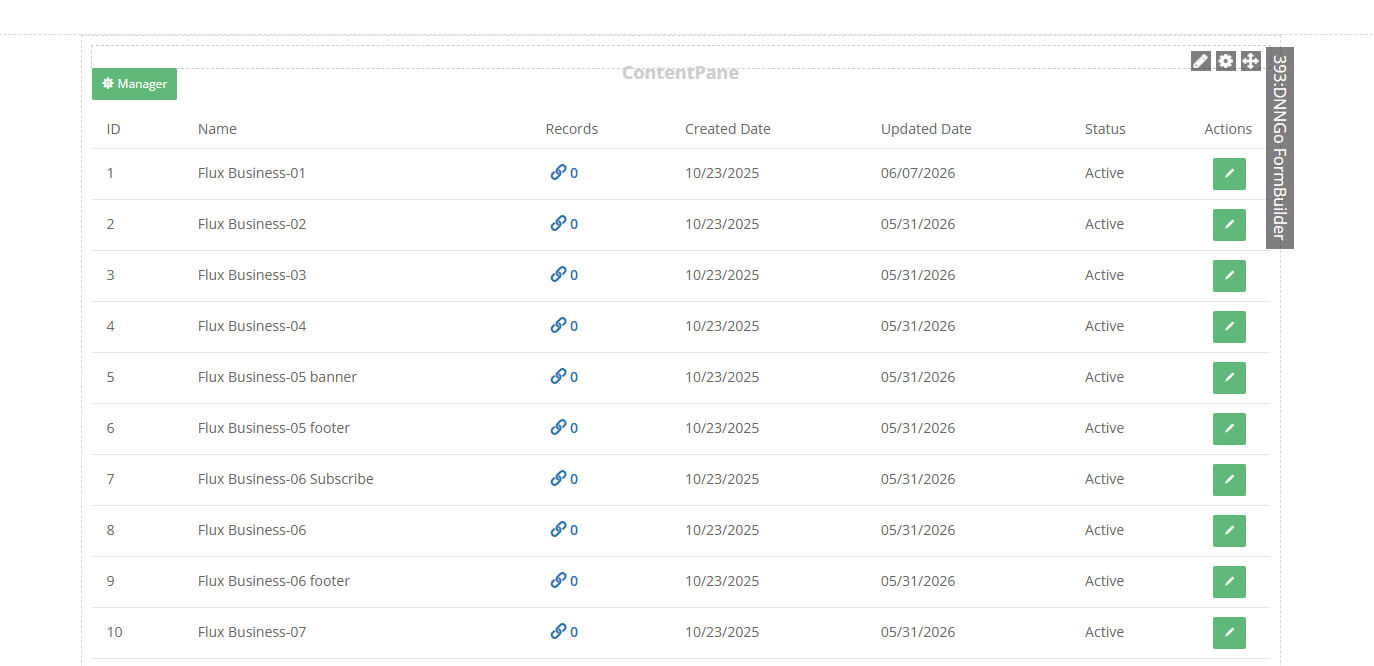
Management Interface
After entering the management interface, click the green Manager button to add, edit, or manage forms. The list displays each form's ID, name, number of submission records, creation/update time, status, and edit actions.
Next Steps
- License Activation — Activate your license to unlock all features
- Building a Form — Learn how to create and manage forms